Accessibility
We are serious about Accessibility:
Dear users, visitors, and colleague editors, our web designers take Accessibility seriously and have installed what they consider the best app to give you the best-in-class accessibility features.
At the moment, we have AccessiYes as our Accessibility features plugin, and AtlasVoice Text To Speech for you to listen to the site.
If you wish to contact Management, please write to management@speculation.ie
If your query is regarding the site’s functioning, send an email to admin@speculation.ie
If your query is regarding Accessibility, please write to accessibility@rosannalenci.eu
How to access and change your page settings?
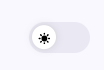
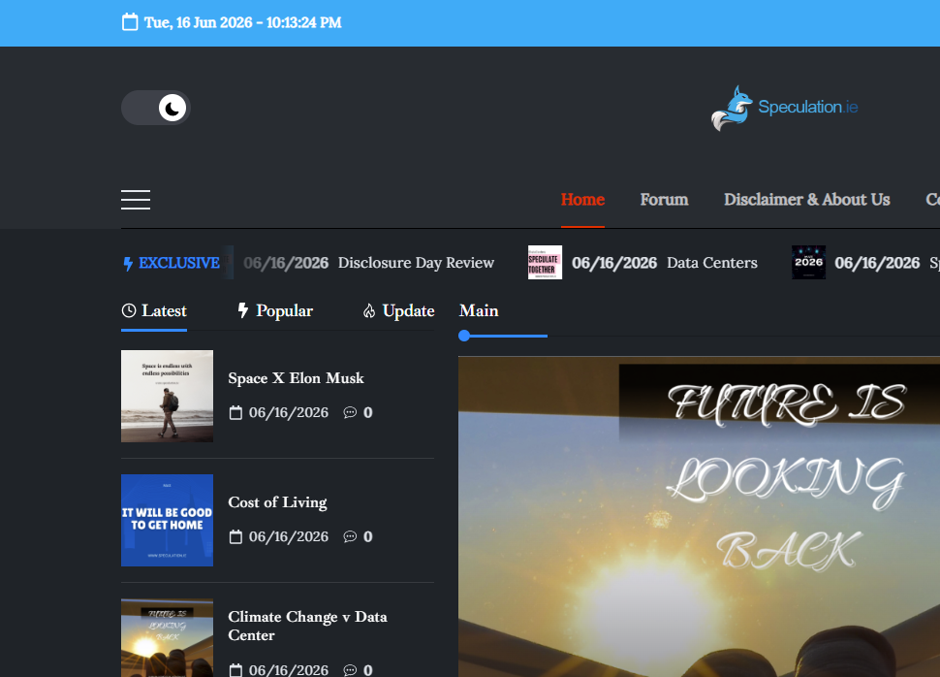
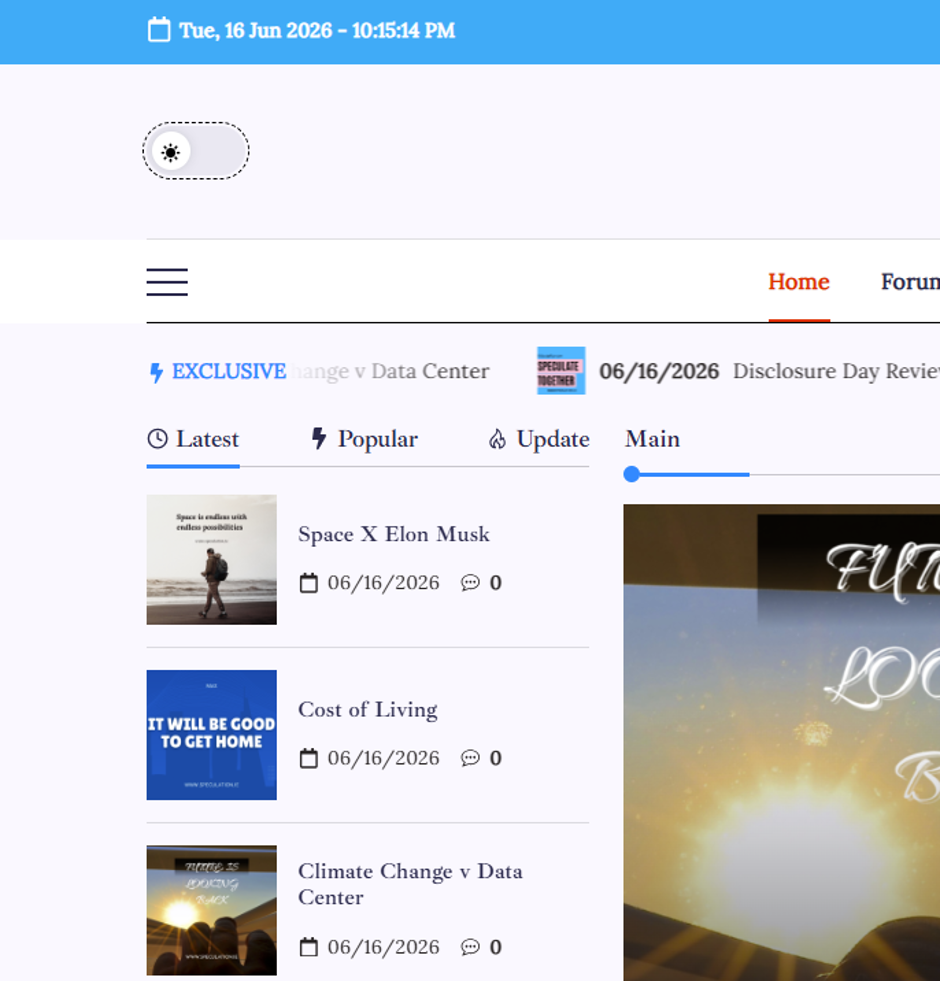
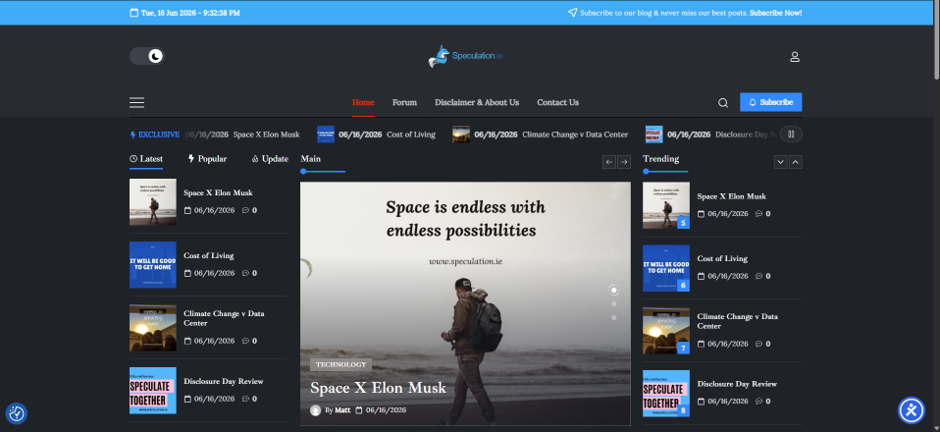
Before you start using the AccessiYes Menu to improve your site interface, please look at the next screenshot and see how we have a toggle for dark mode and light mode on our site. It looks like a moon or a sun.
This option will change the site background from dark grey to white.
So, please use the mode that you feel is best for your eyes.
Dark mode is our favourite as it does not make your eyes look at full light (white) but only spaces of colour in fonts and images, which will help your eyes be healthier and less tired.
We advise you to use the Dark Mode.

AccessiYes Accessibility Menu
Step 1
In the lower right side of your screen, you will find a blue icon with an X.
Step 2
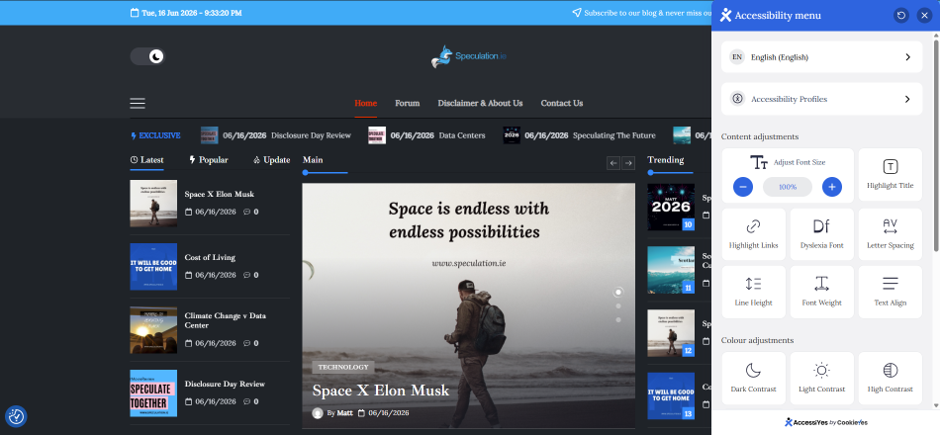
Click on the icon, and a Menu will open with a List of options:
Language Adjustments
Step 3
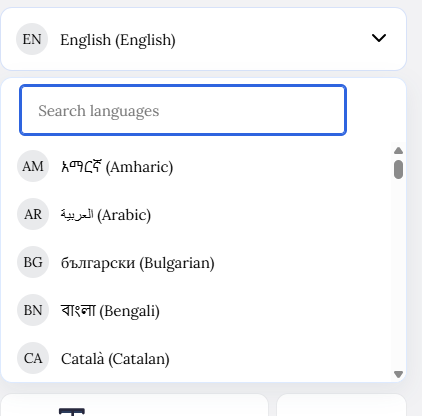
Language: Select the language for this application.
Profile Adjustments
Step 4 Accessibility Profiles:
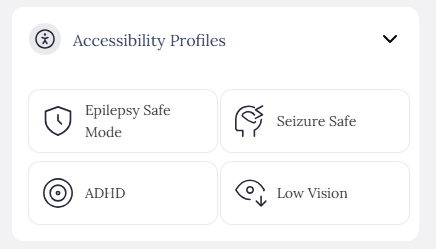
The menu gives you 4 options of profiles:
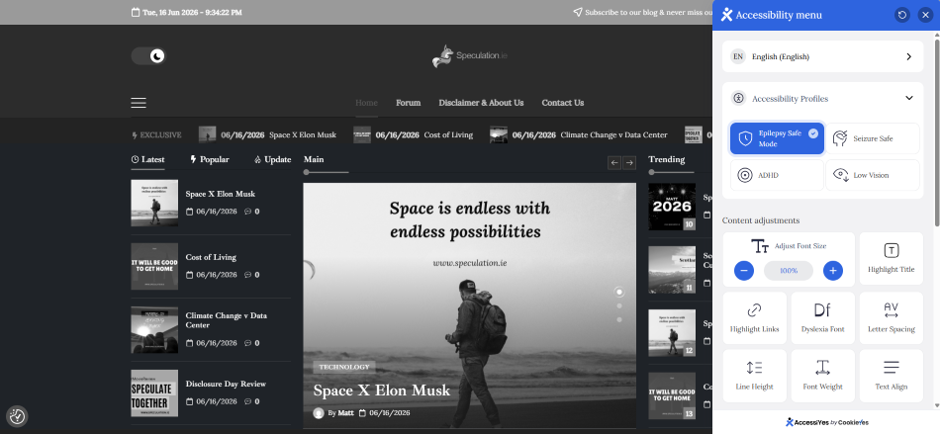
Epilepsy Safe,
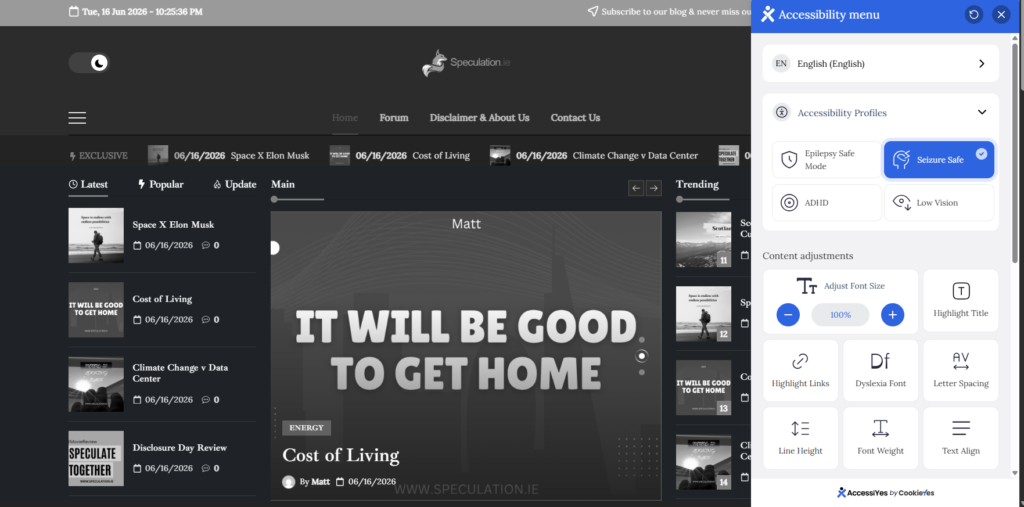
Seizure Safe,
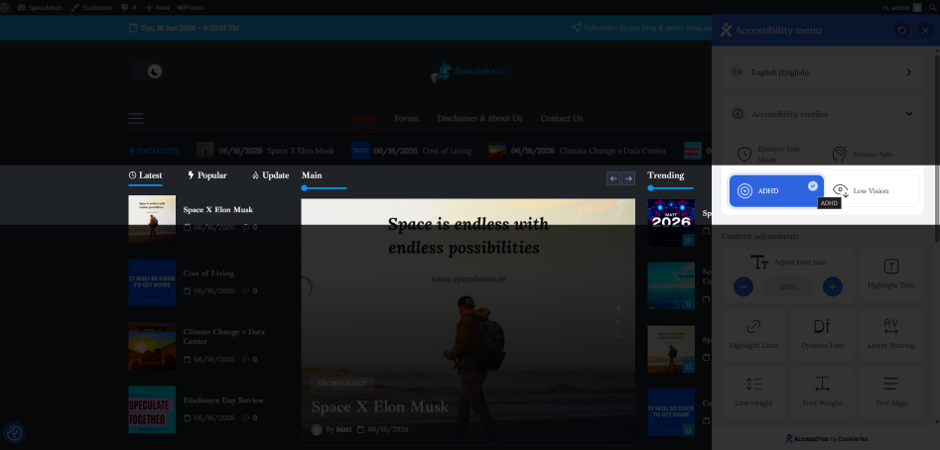
ADHD (Attention Deficit Hyperactivity Disorder),
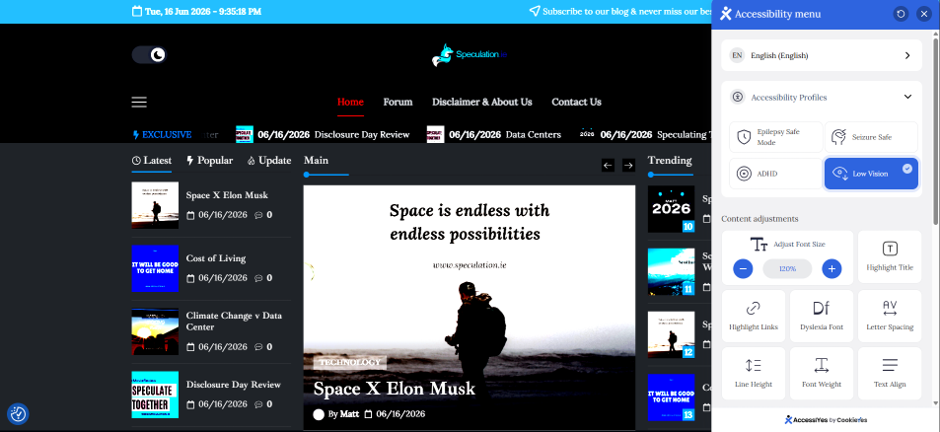
Low Vision.
Epilepsy Safe Screenshot example
Seizure Safe Screenshot example
ADHD (Attention Deficit Hyperactivity Disorder) Screenshot example
Low Vision Screenshot example
Please check Step 6 to review some other visual adjustments that may help you see better
Content Adjustments
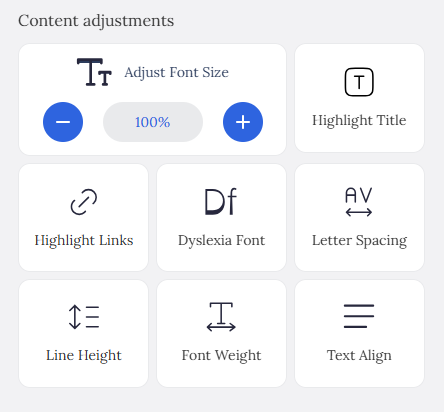
Step 5 Content Adjustment Menu Screenshot
It provides 8 options: Click on each and adjust until you feel at ease. You may change the following:
Font Size,
Highlight Title,
Highlight Links,
Dyslexia Font,
Letter Spacing,
Line Height,
Font Weight,
Text Align.
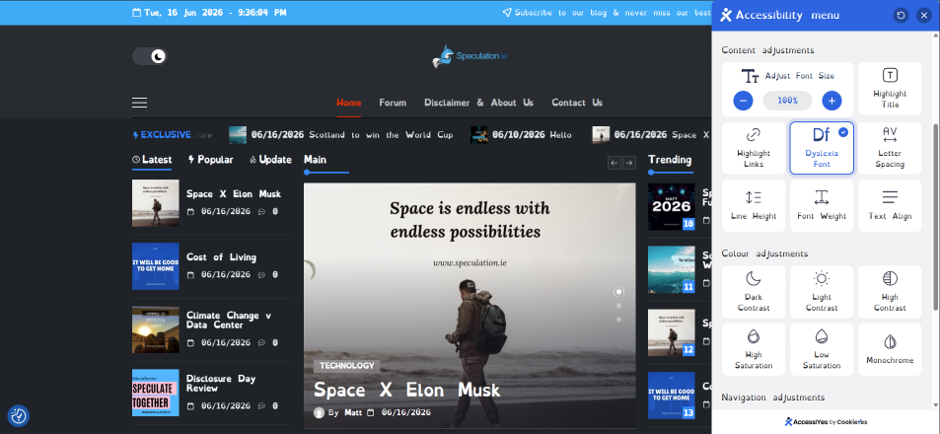
Dyslexia Font Screenshot example
This font helps differentiate better some letters that are commonly confused by dyslexic users.
*Some other users may read better in CAPITALS. We are trying to improve this feature as well.
*Some other users may read better when lines are coloured differently or when content is colour-coded. We are trying to improve this feature as well.
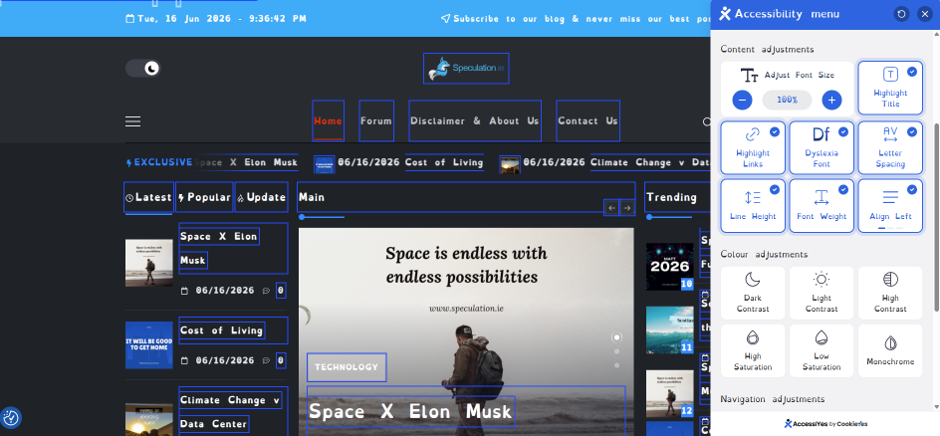
All Content Adjustments Screenshot example
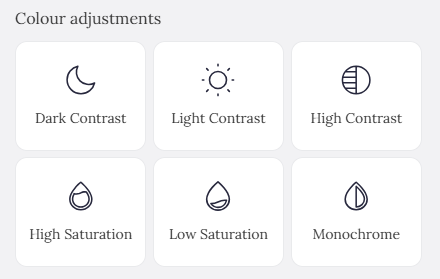
Colour Adjustments
Step 6 Colour Adjustments Screenshot example
This feature gives you 6 options:
Dark Contrast,
Light Contrast,
High Contrast,
High Saturation,
Low Saturation,
Monochrome.
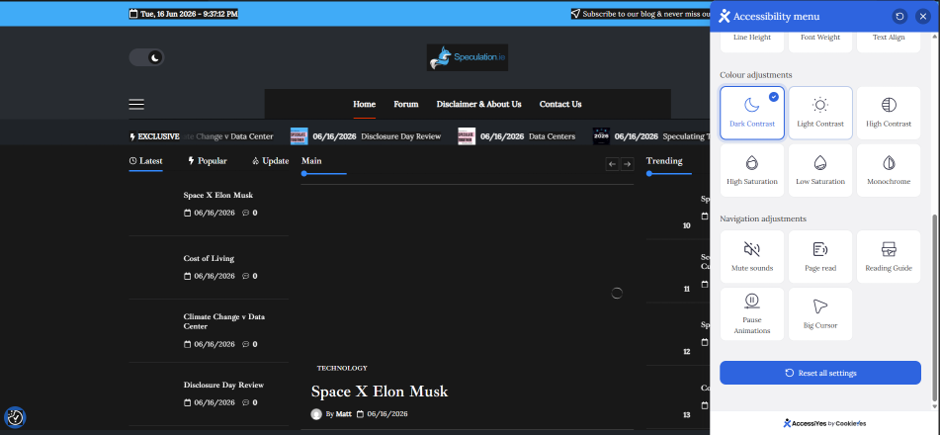
Dark Contrast Screenshot example
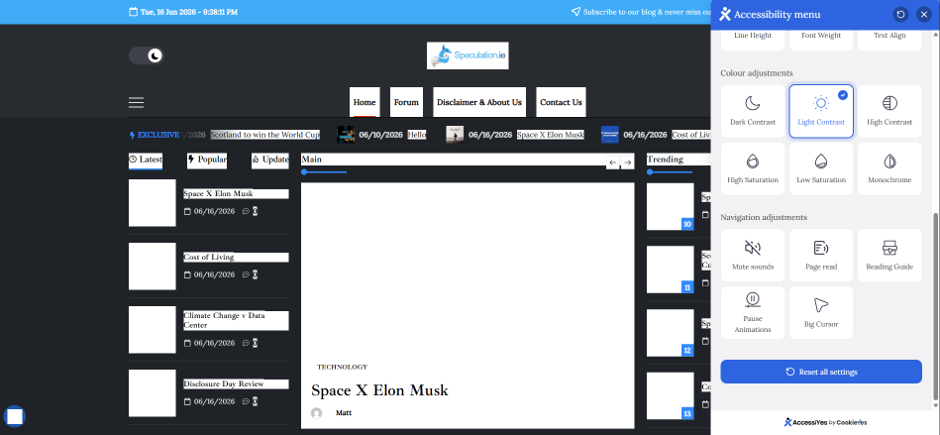
Light Contrast Screenshot example
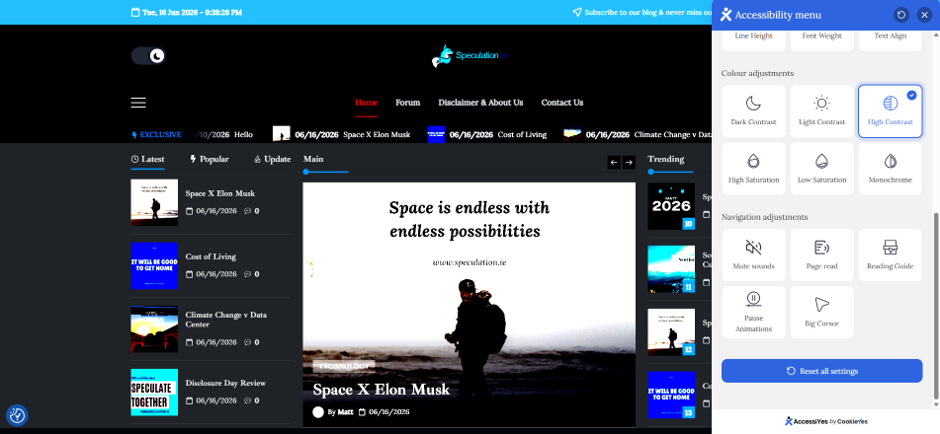
High Contrast Screenshot example
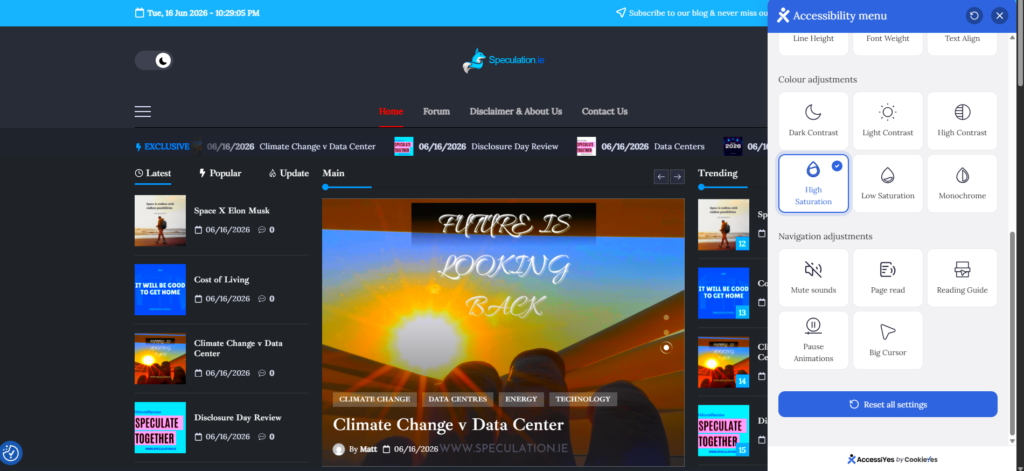
High Saturation Screenshot example
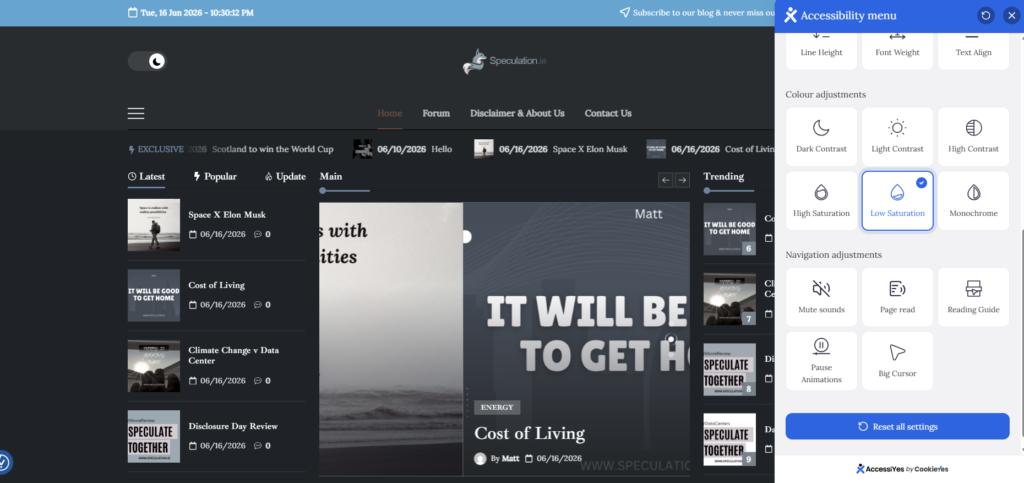
Low Saturation Screenshot example
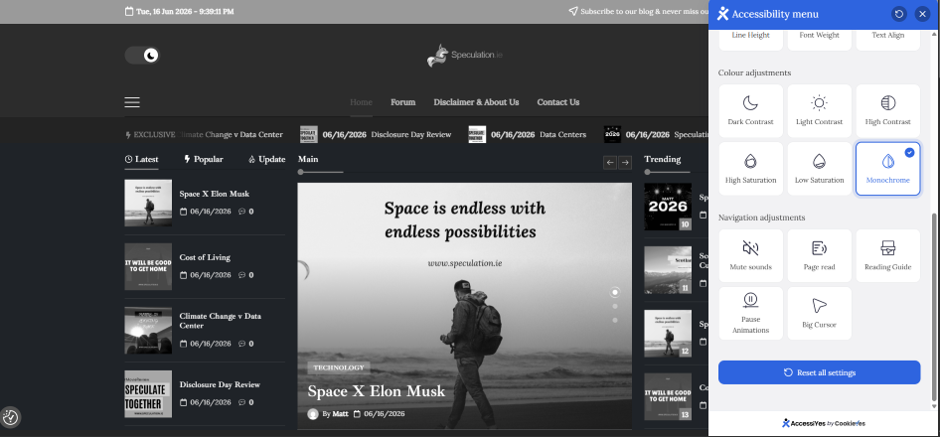
Monochrome Screenshot example
Step 7 Navigation Adjustments
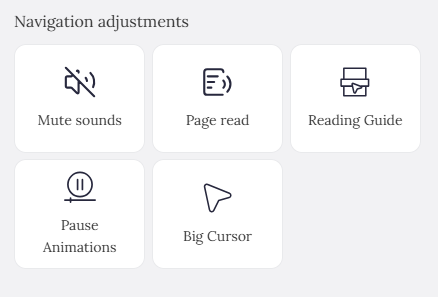
Adjust your audio and reading guide settings:
Mute Sounds,
Page Read,
Reading Guide,
Pause Animations,
Big Cursor.
We don’t have any screenshots of these options because you will see the changes during the use of the site, as you can mute sounds or animations and move your guide for easier reading.
Text to Speech
Step 8 Text to Speech
Also known as Read Out Loud or TTS, this feature will help you navigate the site without reading.
It works for whoever wants to listen to the posts without looking at the screen, yes! But most of all, it allows those who have vision impairments, low vision, or blindness access to our content.
How to access your Text To Speech?
If you need to have an accessibility navigation and guide system, we advise you to download the following options on your device:
Reading & Text Recognition: (see more about better seeing here)
Apps like Seeing AI (iOS) and Lookout (Android) bring written materials to life. They read signs, menus, mail, and even facial expressions aloud. Imagine being handed a cereal box in a foreign language and understanding it instantly. That’s the power of vision app technology. These apps let a person stay independent without needing help with every printed word.
AtlasVoice provides text-to-speech for each Post and Page on our site.
*Forum: This one is actually reading all the content, including navigation.
After you see the title on each page and each post, you will see a box with a play button.

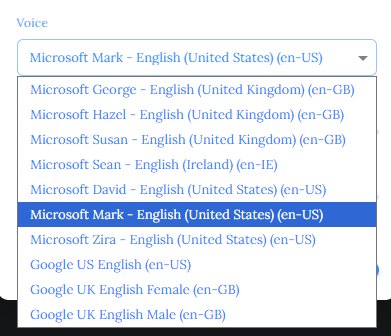
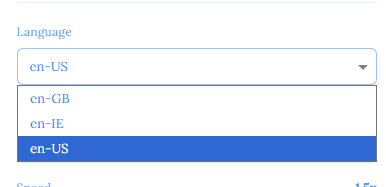
You can change Language, Voice, Speed, Pitch and Volume in the menu.

Screenshot of Language Change
Screenshot of Voice Change